|
<< Click to Display Table of Contents >> Languages Management for the User Interface and the User Guide |
  
|
|
<< Click to Display Table of Contents >> Languages Management for the User Interface and the User Guide |
|
Selecting the language for the user interface of the program.
With Musician you can select the language of the user interface (what you see in the menus, commands, etc.) from within the program. The default opening language when you first installation Musician is English, but you can quickly change this at any time by doing the following:
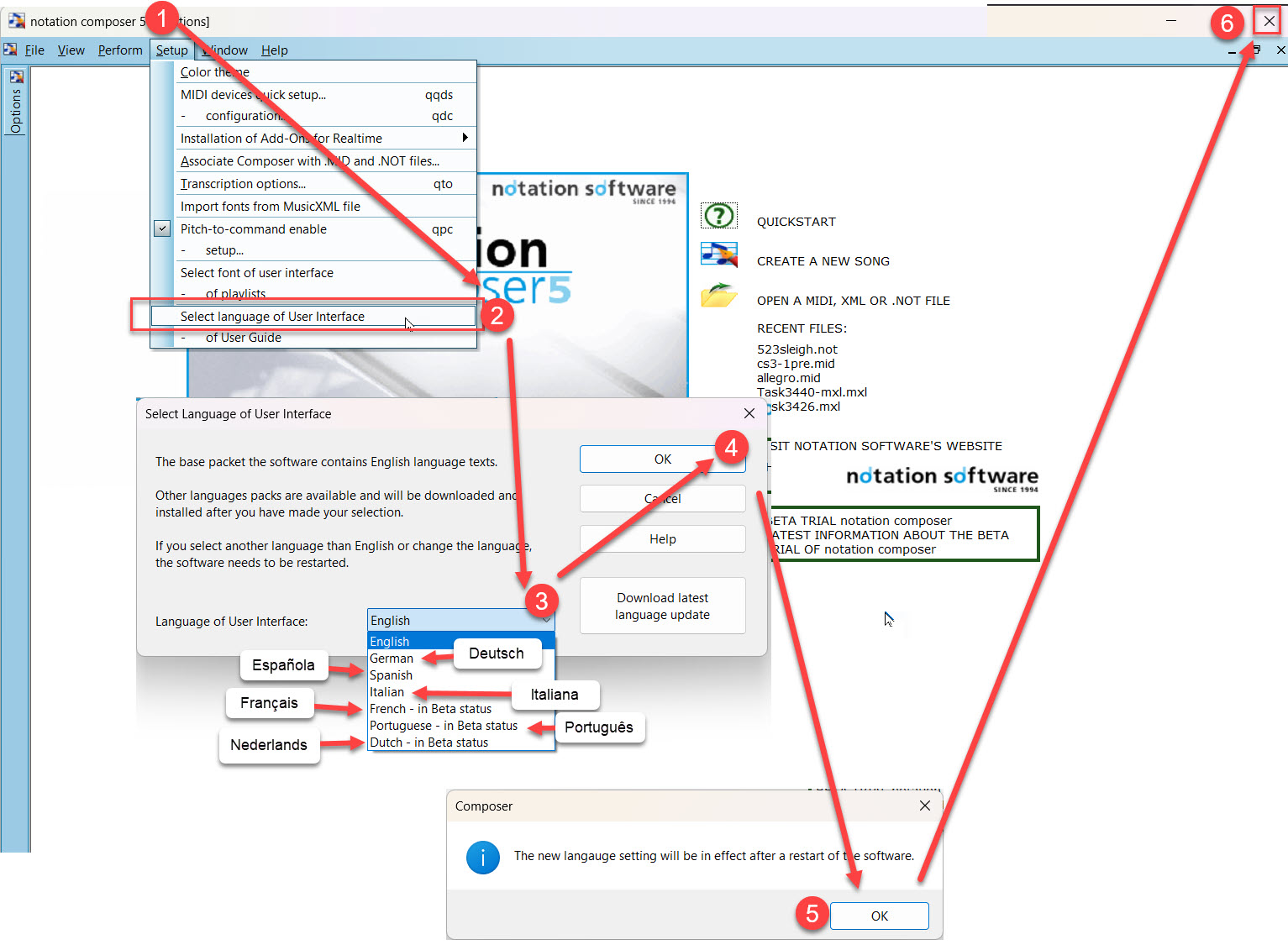
1.Click on Setup
2.Click "Select the language of the User Interface"
3.Select the language that you wish to use for the software. As we develop more language packets these will show up in this dialog. Some may be "in Beta status", which means they are still in the process of being refined. You can help us with these development efforts. Just contact us at support@notation.com to find out how. When the "Beta" status is refined enough, the "Beta" status will be removed from the language selection.
4.After selecting the language you would like, click "Ok". The language packet you have selected will now download, and you will briefly see a dialog telling you that the download is in progress.
5.The message that "The new language setting will be in effect after the restart of the software." will come up; click the "Ok" button.
6.Now restart the software by closing it using the "X" in the top right of the program window.
Now when you restart Musician the interface language will change into the one you selected. Enjoy!
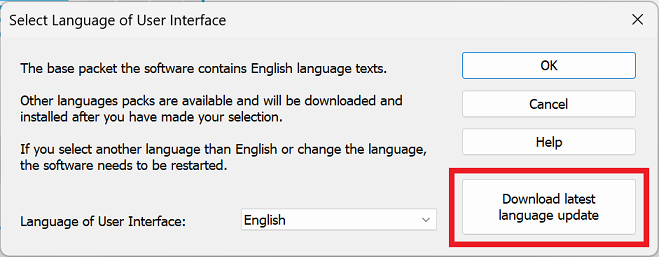
If you would like to make sure that you have the latest version of the language packet you are using, you can follow Steps 1 and 2 above, then click the "Download latest language update" button:
Selecting the language for the User Guide of the program.
We use a translation service for online version of the User Guide. To select the language that you would like the User Guide translated into, please do the following:
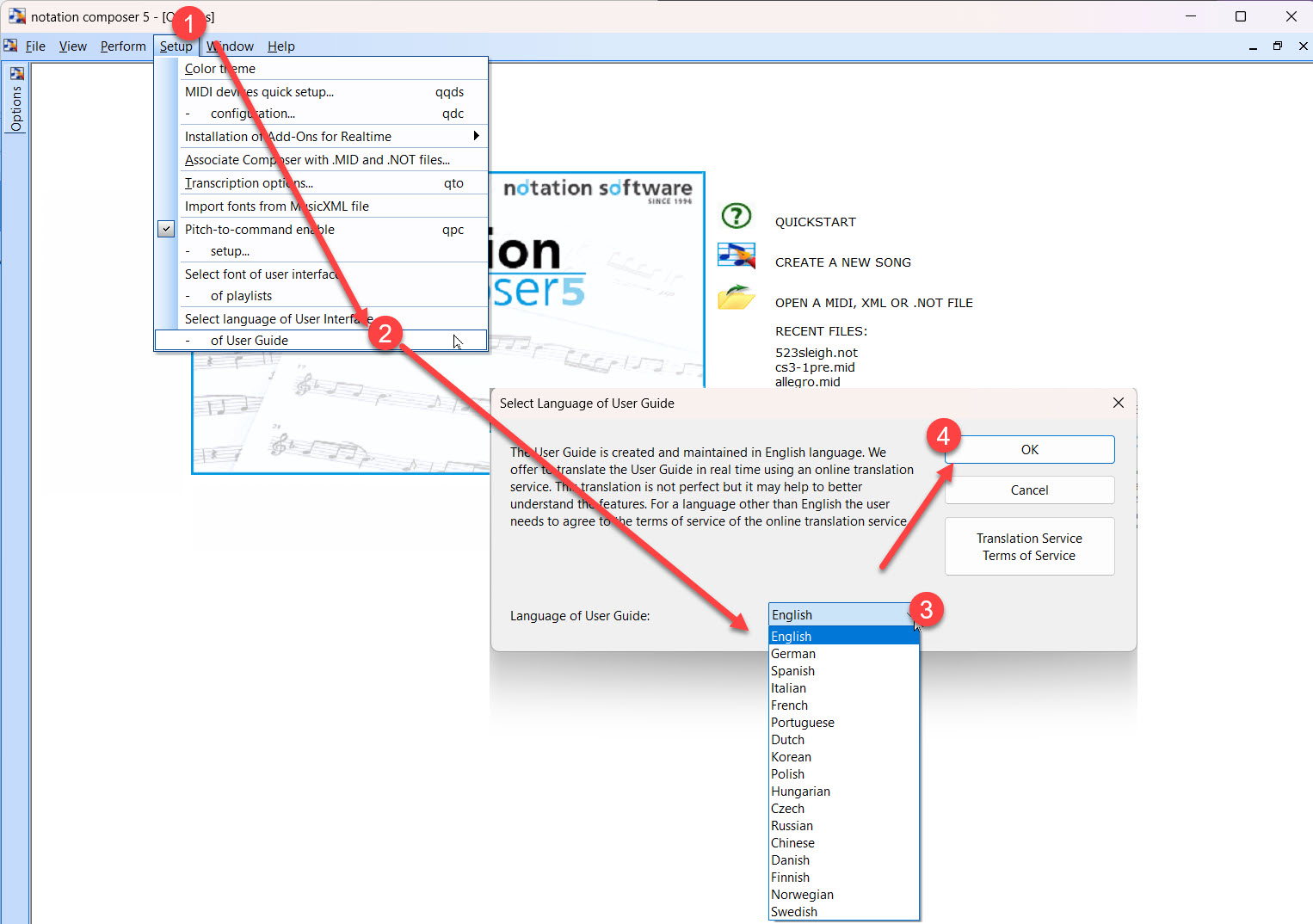
1.Click on Setup.
2.Click "Select language ...of User Guide.
3.Select the language from the drop list.
4.Click "Ok" to save the selection.
Now when you use Help/User Guide, the online User Guide will be translated to the language of your choice.
Please do be aware that this translation service will only translate page by page of our User Guide; it will not open the User Guide in the published framed "table of contents on the left, page of information on the right" format. To have that format, you will need to use the User Guide that is available directly on our website in English.