|
<< Click to Display Table of Contents >> QuickStart Guide |
  
|
|
<< Click to Display Table of Contents >> QuickStart Guide |
|
If you are eager to get started using Musician then you can use this QuickStart Guide to get you going quickly. You can always refer back to this User Guide documentation for specific questions that you may have, but this Guide will show you the basics to get you started. To access this QuickStart Guide at any time from within the software, you can type the quick shortcut "qqsg" at any time and be taken to this page, and have it in the language that you have chosen for viewing the documents.
QuickStart Guide for notation musician
This Quickstart Guide is designed for those who want pointers, and then want to explore for themselves.
For a more “hands on” approach, you may want to check out the “Quick Start Tutorial” which works step-by-step through some of the more common tasks. There are also Tutorial Videos available to guide you through many tasks.
Back up your software (full version only) – Before anything else, please take a moment to back up your installation. The installation is saved in the zip file “Inst_NS_Musician_5_English_Backup_xyz.zip” (xyz = version), which you can find at
Windows 11, 10: C:\Users\Public\Documents\Notation_5\Musician_5\Installation
and in the folder where you have started the installation.
Copy this zip file to some safe storage media (e.g. CD, memory stick, external hard drive, etc.) If you should need to reinstall your software for any reason, simply extract the zip file into one folder of computer hard drive, and then run the file “Installation_Notation_Musician_5_English.msi”.
Opening a file from your computer – simply use “Open” or “File/Open” and navigate to your file.
Finding MIDI or Karaoke Files
You can use your browser and favorite search engine to look for “MIDI” plus the name of a song you would like to work with.

Save the file to your hard drive, and open it in notation musician using “Open” or “File Open.”
Setting up your Work Space
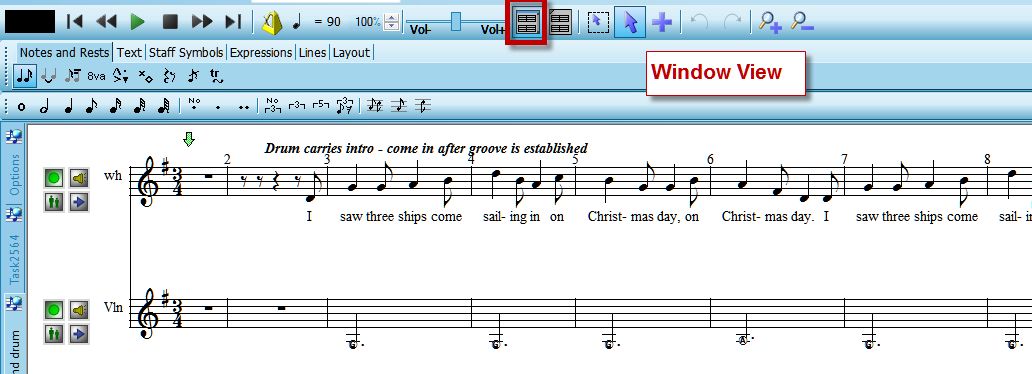
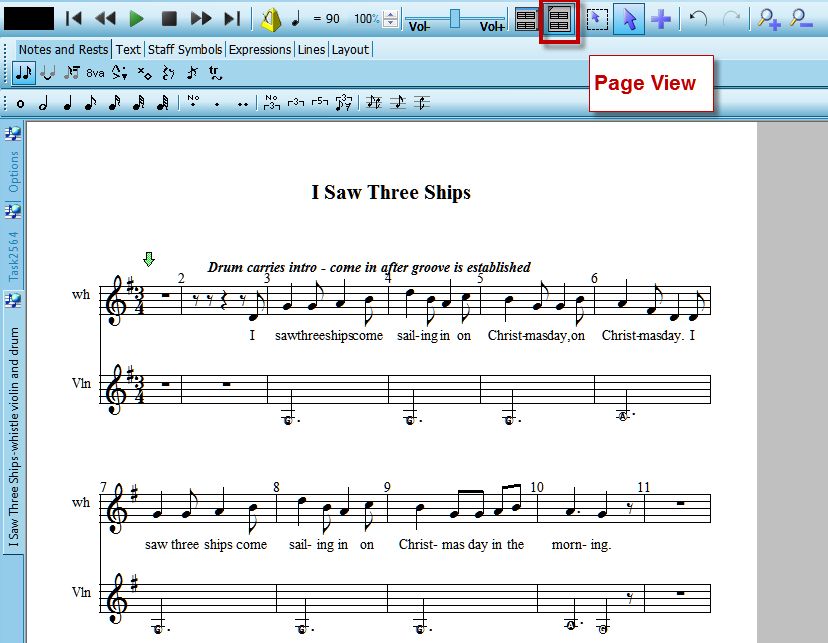
Window view (allows easy muting, soloing, Staff Setup using Staff control buttons) or Page view (“Print preview”)
|
OR |
|
The Main Palette (Tabs and Palettes) and Detail Palette (Palette tools) can be moved for your convenience (only available on Windows).
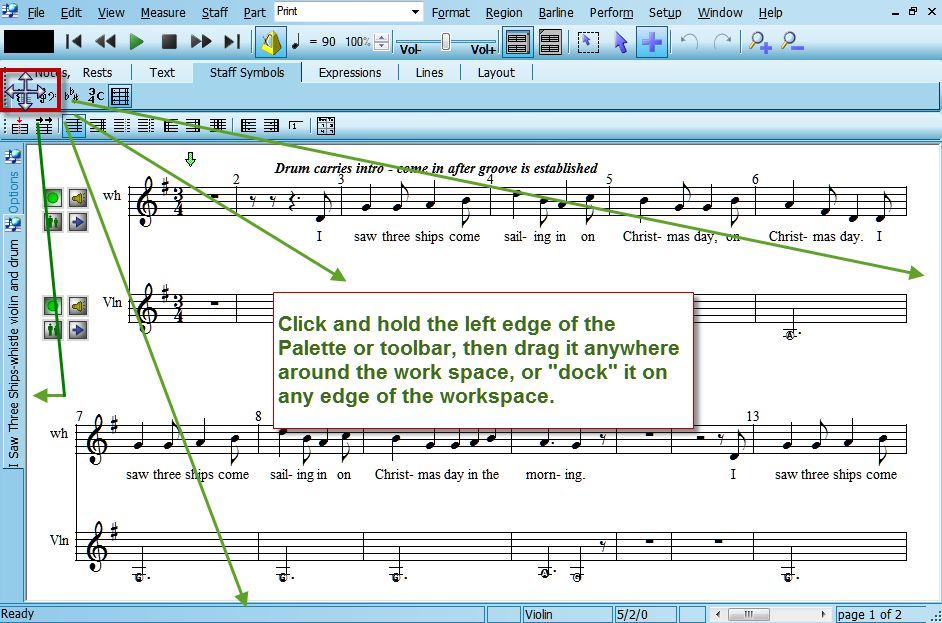
By clicking and holding the palettes, they can be moved to "float" where it is most convenient for you.
Transcription Options - Setup/Transcription Options affects the appearance of the notation.
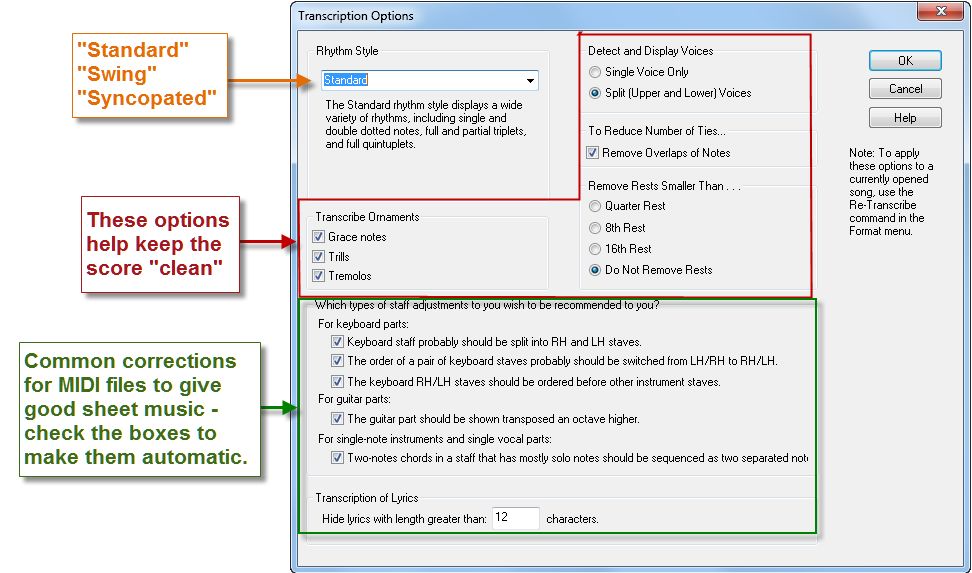
If you don’t like how the notation looks after opening a new file, try different options by using Format/Retranscribe. Be sure to perform this step before doing any annotations – Retranscribing a file will lose all text annotations that you have inserted in the file.
Adding to or Editing the Score
SmartMode – you will typically be in the correct mode for selecting or adding score elements wherever you are at in your work. However, you can switch if needed using the following buttons (or right-clicking your mouse.)
Modes – Add, Select, or Region Select
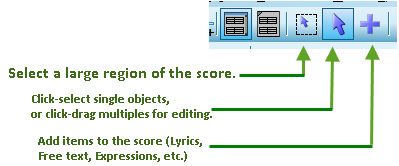
Tabs, Palettes, and Tools

Clicking on an element in the score (eg. a note or key signature) will open the relative tab and palette, with the tools to work on what you have selected. musician automatically puts you in the proper mode, though you can always use a right-mouse-click to change modes if desired.
Clicking on the Tab, Palette, and Tool for an item will also put you in the proper mode that allows you to add that element to the score.
Practicing
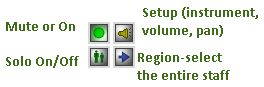
Staff Controls- Use the staff control buttons to silence or solo each staff.
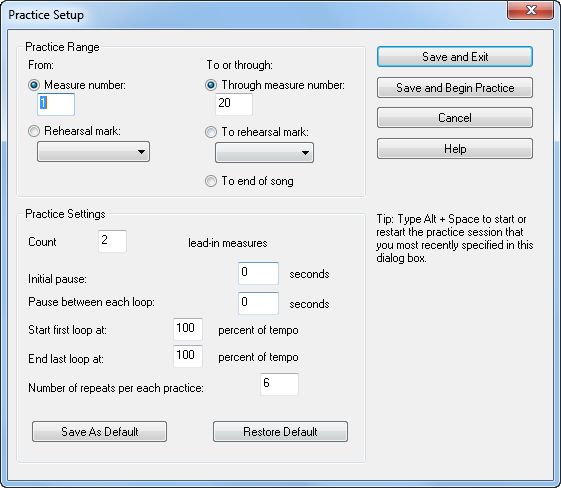
Practice Sessions – Perform/Practice Setup for practice loop options.
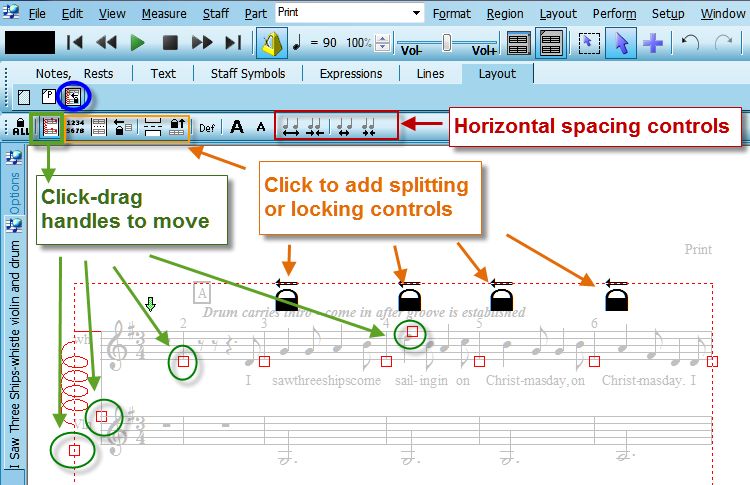
Printing – Layout and Formatting
Layout/Page Layout – Tab, Palette and tools for editing the position of bars and systems (“lines”) of the score on the page(s).
Format menu commands – A centralized list of commands and dialogs for other aspects of the appearance such as the Transcription options, fonts, and hiding/showing types of objects in the score.
For details about any of these, you can see Help/Users Guide, and then use the Index to look up any topic for step-by-step instructions.
We hope you will enjoy many hours of music making fun with notation musician!
Your Notation Software Team