|
<< Click to Display Table of Contents >> Adding Multiple Chord Notes With Mouse |
  
|
|
<< Click to Display Table of Contents >> Adding Multiple Chord Notes With Mouse |
|
Adding multiple chord notes is essentially the same as the previous topic Adding Notes with Mouse by Choosing Durations, with the exception that due to the SmartMode feature, the cursor may change from "Add" mode to "Select" mode. For this particular task, that can be frustrating and keep you from adding further notes to your chord.
The short version of these instructions for adding multiple chord notes is to simply hold the "Shift" key on your keyboard down while adding notes with your mouse to keep the cursor in "Add" mode. For more details on this procedure, see below.
The basic procedure for adding notes with a mouse is:
| 1. | Click on the Notes, Rests tab, and then the Notes button |
 .
.
| 2. | Select the note duration value from the Note Palette. |
| 3. | Specify the voice of the note, which determines the direction (up or down) of the stem attached to the note. |
| 4. | Use the Beat Ruler to determine the location where you want the note to be added, and click the mouse at the desired location. |
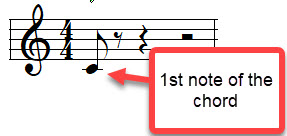
After adding the first note of a chord to the score, you will have something like the following:
If you attempt to add a second note above the note where the stem is located, the Mode will change to "Select" and look like this:
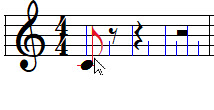
Notice that the cursor has changed to "Select" mode. This is because the cursor has invaded the space around the note stem and is detected by SmartMode as trying to select the existing note.
If you attempt to add a note below the first one, you can indeed successfully do that:
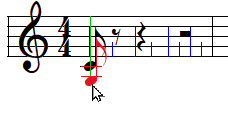
So one method that you can use to add multiple notes is to add them so that the subsequent notes are on the notehead side of the note, rather than the stem side of the note.
However, there is a special method that you can use to always successfully add multiple notes because it keeps the cursor in "Add" mode. When adding notes in tight spaces, hold the "Shift" key on your keyboard to keep the cursor in "Add" mode.
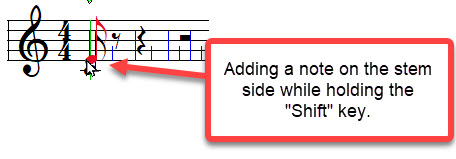
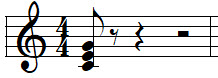
By holding down the "Shift" key when adding notes, you can add them in any pitch position at the same location, no matter whether they are above or below the notehead: